
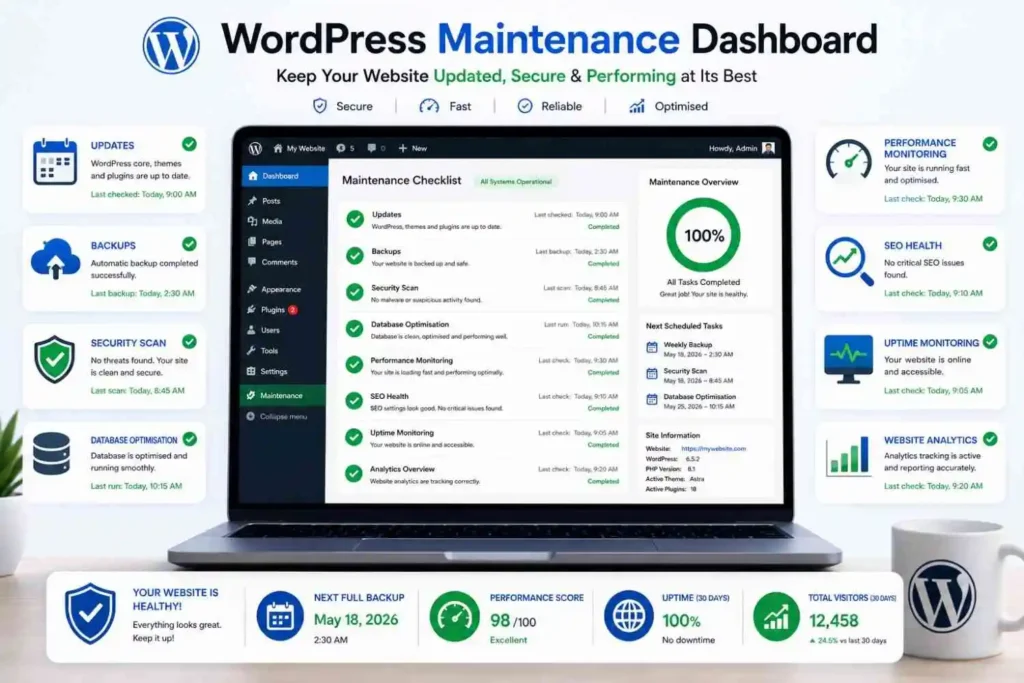
A WordPress website isn’t something you build once and forget. Like any valuable digital asset, it requires regular care to remain secure, fast, and reliable. As your website grows, you’ll install new plugins, publish fresh content, update themes, and adapt to new WordPress releases. Without a proper maintenance routine, these ongoing changes can gradually lead to security vulnerabilities, performance issues, broken functionality, and a poor user experience.
A structured WordPress maintenance checklist helps you stay ahead of potential problems instead of reacting to them after they occur. Whether you manage a personal blog, a business website, or an eCommerce store, regular maintenance ensures your website remains secure, performs efficiently, and continues to deliver the best possible experience for your visitors. In this complete guide, you’ll learn the essential daily, weekly, monthly, quarterly, and annual maintenance tasks that will help keep your WordPress website running smoothly throughout 2026.
Why WordPress Maintenance Matters
Building a WordPress website is only the beginning. Keeping it secure, fast, and reliable requires regular maintenance. As your website grows, you’ll install new plugins, publish fresh content, update themes, and adapt to new WordPress releases. Without proper maintenance, even a well-built website can gradually develop security vulnerabilities, performance issues, broken functionality, and SEO problems that affect both your visitors and your business.
Many website owners only think about maintenance after something goes wrong—a plugin update causes errors, a contact form stops working, or the website suddenly becomes slow. By that stage, resolving the issue often takes significantly more time, effort, and money than preventing it in the first place. A proactive maintenance routine helps you identify small problems early, reducing the risk of unexpected downtime and costly repairs.
Regular WordPress maintenance also ensures your website continues to deliver the best possible experience for your visitors. Faster loading pages, up-to-date software, secure login systems, working forms, and reliable backups all contribute to a website that users can trust. Search engines also favour websites that are well-maintained, secure, and free from technical issues, making maintenance an important part of your long-term SEO strategy.
Some of the key benefits of maintaining your WordPress website include:
- Improved website security and protection against vulnerabilities.
- Better loading speed and overall performance.
- Reduced downtime and fewer technical issues.
- Improved SEO performance and search visibility.
- Better user experience across desktop and mobile devices.
- Reliable backups for faster disaster recovery.
- Longer lifespan for your website, themes, and plugins.
- Greater confidence that critical features are working correctly.
Whether you manage a personal blog, a business website, or an eCommerce store, regular maintenance should be viewed as an investment rather than a chore. Spending a small amount of time on routine maintenance each week can help prevent major technical issues, protect your data, and ensure your WordPress website continues to perform at its best throughout the year.
What Happens If You Ignore WordPress Maintenance?
Ignoring WordPress maintenance may not cause immediate problems, but over time, small issues can grow into serious challenges that affect your website’s security, performance, and reliability. Outdated plugins, neglected backups, broken links, and unresolved errors can gradually impact the experience of your visitors and make your website more vulnerable to cyber threats. Regular maintenance isn’t just about keeping WordPress updated—it’s about ensuring every part of your website continues to function as expected.
Many website owners assume that because their website appears to be working today, it doesn’t require attention. Unfortunately, that’s rarely the case. WordPress, themes, plugins, hosting environments, and web technologies are constantly evolving. Without routine maintenance, compatibility issues, security vulnerabilities, and performance bottlenecks can develop without any obvious warning signs until they begin affecting your visitors or business operations.
Some of the most common consequences of ignoring WordPress maintenance include:
Increased Security Risks
Outdated WordPress installations, plugins, and themes are among the most common entry points for hackers. Delaying updates can expose your website to known vulnerabilities, malware infections, brute-force attacks, and unauthorised access.
Slower Website Performance
As your website grows, unused plugins, oversized media files, database clutter, and outdated software can gradually reduce loading speeds. A slow website frustrates visitors and can negatively impact your search engine rankings.
Plugin and Theme Conflicts
WordPress plugins and themes are updated regularly to remain compatible with new WordPress releases. Ignoring updates increases the likelihood of compatibility issues, broken layouts, missing functionality, and unexpected website errors.
Data Loss and Failed Backups
Without regularly verifying your backup system, you may discover that your backups are incomplete or unusable only after something goes wrong. Recovering a website without a working backup can be both time-consuming and expensive.
Poor User Experience
Broken forms, missing images, faulty navigation, and unexpected error messages create a frustrating experience for visitors. If users cannot access important information or complete actions such as submitting an enquiry or placing an order, they’re likely to leave and choose a competitor instead.
Declining SEO Performance
Search engines favour websites that are secure, fast, and technically sound. Broken links, slow-loading pages, crawl errors, and indexing issues caused by poor maintenance can gradually reduce your search visibility and organic traffic.
Ignoring maintenance may save a little time today, but it often leads to far greater costs in the future. By carrying out regular maintenance, you can identify and resolve small issues before they become major problems, keeping your WordPress website secure, reliable, and performing at its best for both your visitors and search engines.
Create a WordPress Maintenance Schedule
One of the biggest mistakes website owners make is waiting until something goes wrong before carrying out maintenance. By then, a simple issue may have already turned into a security risk, performance problem, or unexpected website downtime. Instead of treating maintenance as an occasional task, it’s far more effective to follow a structured schedule that spreads important tasks throughout the year.
A maintenance schedule helps you stay organised and ensures that essential tasks aren’t forgotten. Rather than trying to complete everything in a single session, you can divide maintenance into daily, weekly, monthly, quarterly, and annual activities. This approach makes the workload more manageable while helping you keep your WordPress website secure, fast, and reliable all year round.
Here’s a practical maintenance schedule that works well for most WordPress websites:
Daily Maintenance
Focus on tasks that help you identify problems before they affect your visitors, such as checking website availability, monitoring uptime, reviewing security alerts, verifying backups, and testing important contact forms.
Weekly Maintenance
Set aside time each week to update WordPress core, plugins, and themes, scan for malware, review website speed, moderate comments, and check for broken links. Performing these tasks regularly helps reduce security risks and keeps your website running smoothly.
Monthly Maintenance
Monthly maintenance should focus on optimisation and housekeeping. This includes cleaning and optimising your database, reviewing user accounts, removing unnecessary plugins and themes, testing backups, checking website performance, reviewing SEO health, and ensuring forms continue to work correctly.
Quarterly Maintenance
Every few months, take a broader look at your website. Review analytics, audit security settings, evaluate hosting performance, check third-party integrations, assess user experience, and refresh older content where necessary. Quarterly reviews help you identify trends and plan future improvements.
Annual Maintenance
Once a year, carry out a complete review of your website. Assess whether your hosting plan still meets your needs, renew your domain and SSL certificate, review legal pages, evaluate your website’s overall performance, and ensure your long-term business goals still align with your website strategy.
A structured maintenance schedule doesn’t just reduce the likelihood of technical problems—it also saves time in the long run. By completing small maintenance tasks consistently, you’ll avoid many of the larger issues that can interrupt your website, affect your visitors, and require expensive emergency fixes later.
Daily WordPress Maintenance Tasks
Keeping your WordPress website in excellent condition doesn’t require hours of work every day. In fact, most daily maintenance tasks can be completed in just a few minutes. The purpose of daily maintenance isn’t to make major changes—it’s to identify potential issues before they affect your visitors, customers, or search engine rankings. A quick daily review can help you detect problems such as website downtime, failed backups, broken forms, or suspicious activity long before they become serious.
If your website receives regular traffic, processes customer enquiries, or handles online sales, daily maintenance becomes even more important. Catching an issue early can prevent lost leads, interrupted sales, and unnecessary downtime. By making these checks part of your daily routine, you’ll ensure your website remains secure, reliable, and ready for visitors at all times.
Below are the essential daily maintenance tasks every WordPress website owner should perform.
1. Check Website Availability
Your website can’t achieve its goals if visitors can’t access it. Whether you run a personal blog, a business website, or an online store, website availability should be the first thing you check each day. Even a short period of downtime can lead to missed enquiries, lost sales, and a poor user experience. If search engines repeatedly encounter an unavailable website, it may also affect your website’s search visibility over time.
A quick manual check takes only a few minutes but can help you identify issues before your visitors report them. Open your website in an incognito browser or on a different device to ensure you’re viewing the live version rather than a cached copy.
During your daily review, confirm that:
- The homepage loads correctly without errors.
- Navigation menus and important links work properly.
- Images, videos, and other media display as expected.
- Contact forms and call-to-action buttons are functioning correctly.
- Important pages such as Services, About Us, Contact, and Blog are accessible.
- There are no unexpected redirects, broken layouts, or error messages.
If you notice any issues, investigate them immediately instead of waiting for customer complaints. Many problems—such as expired SSL certificates, hosting outages, plugin conflicts, or accidental configuration changes—can be resolved quickly when detected early. Making website availability part of your daily maintenance routine helps ensure your visitors always have access to a fast, reliable, and professional website.
2. Monitor Website Uptime
Website uptime refers to the amount of time your website remains accessible to visitors. Even if your website only goes offline for a short period, it can negatively impact user experience, lead to lost enquiries or sales, and reduce trust in your brand. If downtime occurs frequently, search engines may also struggle to crawl your website, which can affect your SEO performance over time.
Rather than waiting for customers to report that your website is unavailable, monitor its uptime proactively. Many hosting providers offer basic uptime monitoring, and there are also dedicated monitoring tools that can notify you immediately if your website becomes inaccessible. Receiving instant alerts allows you to investigate and resolve issues before they have a significant impact on your visitors.
As part of your daily maintenance routine, monitor the following:
- Website uptime and overall availability.
- SSL certificate status to ensure secure HTTPS access.
- Server response time and loading performance.
- HTTP errors such as 404, 500, or 503 status codes.
- Unexpected downtime or recurring outages.
If you notice repeated downtime or slow server response times, don’t ignore them. These issues could indicate hosting limitations, server configuration problems, excessive resource usage, or plugin conflicts. Identifying the root cause early helps maintain a reliable website and ensures your visitors can access your content whenever they need it.
3. Review Security Alerts
Website security isn’t something you should only think about after an attack occurs. Every day, WordPress websites are targeted by automated bots searching for weak passwords, outdated plugins, and known security vulnerabilities. While a good security plugin and firewall provide an important first line of defence, they can’t protect your website effectively if you ignore the alerts they generate. Reviewing security notifications daily helps you detect suspicious activity early and take action before it develops into a serious security incident.
Most security plugins and hosting providers provide notifications whenever they detect unusual behaviour. Instead of dismissing these alerts, take a few minutes to understand what happened and investigate anything that appears suspicious. Early detection is one of the most effective ways to prevent malware infections, unauthorised access, and data breaches.
During your daily security review, check for:
- Failed or repeated login attempts.
- Malware detection or suspicious file changes.
- Unauthorised administrator or user account activity.
- Firewall alerts and blocked malicious requests.
- Unexpected file modifications or security warnings.
If you notice unusual activity, investigate it immediately rather than assuming it’s harmless. Reset compromised passwords, update vulnerable plugins or themes, remove unknown user accounts, and restore your website from a clean backup if necessary. Making security monitoring part of your daily WordPress maintenance routine helps protect your website, your visitors, and your business from avoidable security threats.
4. Confirm Backup Completion
Backups are your website’s safety net. Whether it’s a failed update, malware infection, accidental deletion, or server failure, a recent backup can help you restore your website quickly and minimise downtime. However, simply enabling automatic backups isn’t enough—you should also confirm that they have completed successfully. A backup that fails silently or becomes corrupted won’t be much help when you need it most.
If your website changes frequently, such as publishing new blog posts, receiving customer enquiries, or processing online orders, daily backups are highly recommended. Taking a few moments to verify your backups each day ensures that your latest website data is protected and can be restored if necessary.
During your daily backup review, confirm that:
- The scheduled backup completed successfully.
- Both website files and the database were included.
- The backup is stored in the correct location.
- Cloud or remote storage is accessible.
- No backup errors or warning messages were reported.
It’s also a good practice to keep backups in multiple locations, such as your hosting account and a secure cloud storage service. This provides an additional layer of protection if one backup location becomes unavailable. Remember, the value of a backup isn’t measured by how often it’s created—it’s measured by whether it can successfully restore your website when you need it most. Regularly confirming backup completion gives you peace of mind and ensures your WordPress website can recover quickly from unexpected problems.
5. Review Contact Forms
Your contact forms are often the primary way potential customers communicate with your business. Whether someone is requesting a quote, asking a question, subscribing to your newsletter, or placing an enquiry, a malfunctioning form can result in missed opportunities without you even realising it. Unlike a broken page, visitors rarely report that a form isn’t working—they simply leave and contact a competitor instead. That’s why regularly testing your forms should be part of your WordPress maintenance routine.
Although a quick test doesn’t need to be performed every single day for low-traffic websites, websites that rely heavily on customer enquiries, bookings, or online orders should verify their most important forms regularly. A simple test submission can confirm that everything is working as expected and that enquiries are reaching the correct inbox.
During your review, check that:
- Contact forms submit successfully without any errors.
- Confirmation or success messages appear after submission.
- Email notifications are delivered to the correct recipient.
- Spam protection, such as CAPTCHA or anti-spam tools, is functioning properly.
- File uploads, if enabled, are working correctly.
- Forms display and function properly on both desktop and mobile devices.
If you discover that a form isn’t working, investigate the issue immediately. Problems are often caused by SMTP configuration errors, plugin conflicts, spam protection settings, or recent updates. Resolving these issues quickly helps ensure you never miss valuable customer enquiries, support requests, or potential sales because of a simple technical problem.
Common WordPress Maintenance Mistakes
Maintaining a WordPress website isn’t just about completing a checklist—it’s about following the right practices consistently. Even website owners who regularly update WordPress can unknowingly make mistakes that reduce performance, create security risks, or lead to unexpected downtime. Understanding these common maintenance mistakes will help you avoid unnecessary problems and keep your website running smoothly throughout the year.
Ignoring Backups
One of the biggest mistakes is assuming that your hosting provider’s backups are enough. While many hosting companies offer backup services, they shouldn’t be your only recovery option. Always maintain your own backup strategy, store backups in multiple secure locations, and test them periodically to ensure they can be restored successfully. A backup is only valuable if it works when you need it.
Updating Without Testing
Keeping WordPress, plugins, and themes updated is essential, but applying updates without testing can sometimes cause compatibility issues. Before installing major updates, create a fresh backup and, if possible, test the changes in a staging environment. After every update, review your website carefully to ensure important features such as forms, navigation, and checkout pages continue to function correctly.
Installing Too Many Plugins
Adding plugins for every new feature may seem convenient, but each plugin increases maintenance requirements and can introduce compatibility or security issues. Instead of focusing on the number of plugins, evaluate their quality, purpose, and maintenance history. Remove plugins that are no longer needed and choose reliable, well-supported solutions that add genuine value to your website.
Forgetting Mobile Users
Many website owners test changes only on desktop computers, overlooking how their website performs on mobile devices. Since a significant percentage of website traffic now comes from smartphones and tablets, always check that your pages load quickly, layouts display correctly, and buttons, menus, and forms work properly across different screen sizes.
Ignoring Small Problems
Minor issues such as broken images, spelling mistakes, slow-loading pages, or occasional error messages may seem insignificant, but they can gradually damage your website’s credibility and user experience. Small problems also have a habit of becoming larger, more expensive issues if they’re left unresolved. Addressing them as soon as they’re identified helps maintain a professional, reliable website and prevents unnecessary troubleshooting later.
Avoiding these common mistakes is just as important as completing your regular maintenance tasks. By taking a proactive approach, testing changes carefully, and reviewing your website consistently, you can reduce technical issues, improve reliability, and ensure your WordPress website continues to deliver the best possible experience for your visitors.
Monitor Website Health
A healthy website isn’t one that’s only checked when something goes wrong—it’s one that’s monitored continuously. Regular website health monitoring allows you to detect performance issues, security threats, and technical errors before they affect your visitors. Instead of waiting for customer complaints or search engine warnings, you can identify potential problems early and resolve them quickly, helping to maintain a reliable and professional online presence.
Website health should be viewed as an ongoing process rather than a one-time task. As your website grows, new content, plugins, updates, and third-party integrations can all influence its stability and performance. Monitoring key health indicators on a regular basis helps ensure your website continues to operate efficiently while reducing the likelihood of unexpected downtime or costly troubleshooting.
As part of your website health monitoring routine, keep an eye on the following:
- Website uptime and availability.
- Server response time and overall performance.
- SSL certificate status and HTTPS security.
- PHP and server error logs.
- Database errors and resource usage.
- Security alerts and suspicious login activity.
- Backup completion and storage status.
- Website speed and Core Web Vitals.
If you notice recurring issues—such as slow response times, frequent downtime, repeated security alerts, or increasing server errors—don’t ignore them. These warning signs often indicate underlying problems that should be investigated before they impact your visitors or business operations.
By monitoring your website’s health consistently, you’ll be able to detect issues early, maintain better performance, strengthen website security, and provide a smoother experience for your users. A few minutes spent reviewing your website regularly can prevent hours of troubleshooting and help keep your WordPress website running at its best throughout the year.
Monitor Core Web Vitals
Keeping your WordPress website fast isn’t just about reducing page load times—it’s about delivering a smooth and enjoyable experience for every visitor. That’s where Core Web Vitals come in. These performance metrics, introduced by Google, measure how users experience your website in terms of loading speed, responsiveness, and visual stability. Monitoring these metrics regularly allows you to identify performance issues before they begin affecting user experience or search visibility.
Core Web Vitals can change over time as you publish new content, install plugins, update themes, or add third-party scripts. A website that performs well today may gradually slow down if these changes aren’t monitored. Regularly reviewing your Core Web Vitals helps you maintain consistent performance and quickly identify areas that require optimisation.
The three Core Web Vitals you should monitor are:
Largest Contentful Paint (LCP)
Largest Contentful Paint measures how long it takes for the largest visible element on a webpage—such as a banner image, hero section, or large block of text—to fully load. A faster LCP gives visitors the impression that your website is loading quickly and is ready to use. Google recommends keeping your Largest Contentful Paint below 2.5 seconds for a good user experience.
Interaction to Next Paint (INP)
Interaction to Next Paint measures how quickly your website responds when a visitor interacts with it, such as clicking a button, opening a menu, or submitting a form. A responsive website feels smooth and reliable, while delayed interactions can frustrate users. For the best user experience, Google recommends maintaining an INP of 200 milliseconds or less.
Cumulative Layout Shift (CLS)
Cumulative Layout Shift measures the visual stability of your website. It tracks unexpected movements of page elements while the page is loading, such as buttons, images, or text shifting position. These sudden layout changes can lead to accidental clicks and create a poor browsing experience. Google recommends keeping your CLS score below 0.1 to ensure a stable and predictable layout.
Monitoring these metrics regularly helps you identify performance regressions before they become noticeable to your visitors. Instead of focusing solely on achieving a perfect performance score, aim to maintain healthy Core Web Vitals while providing a fast, responsive, and visually stable browsing experience. Regular performance reviews, combined with ongoing optimisation, will help ensure your WordPress website continues to meet both user expectations and modern search engine standards.
Interaction to Next Paint (INP)
Interaction to Next Paint (INP) measures how quickly your website responds to user interactions. Whenever a visitor clicks a button, opens a navigation menu, submits a form, or interacts with another element on your website, INP calculates the time it takes for the browser to process that action and display the resulting visual update. A low INP score makes your website feel smooth, responsive, and reliable, while a high INP score can make even a fast-loading website appear sluggish.
Several factors can negatively affect INP, including heavy JavaScript execution, excessive third-party scripts, inefficient plugins, and complex page elements that block the browser from responding quickly. As your website grows and additional features are added, monitoring INP becomes increasingly important to ensure users continue to enjoy a responsive browsing experience.
To improve your INP score:
- Reduce unnecessary JavaScript execution.
- Remove or defer unused third-party scripts.
- Use lightweight, well-coded plugins and themes.
- Minimise long-running browser tasks.
- Regularly test your website using tools such as Google PageSpeed Insights.
Google recommends maintaining an Interaction to Next Paint (INP) of 200 milliseconds or less. Monitoring this metric regularly helps ensure your website responds quickly to user interactions, improving both the overall user experience and your website’s long-term performance.
Cumulative Layout Shift (CLS)
Cumulative Layout Shift (CLS) measures the visual stability of your website while a page is loading. It tracks unexpected movements of elements such as images, buttons, text, advertisements, or forms after the page has already started rendering. If you’ve ever tried to click a button only for it to move because another element loaded above it, you’ve experienced a layout shift. These unexpected movements can frustrate users, lead to accidental clicks, and create a poor browsing experience.
Layout shifts are commonly caused by images without defined dimensions, advertisements that load dynamically, embedded videos, custom fonts that swap after loading, or content that’s inserted above existing page elements. Although these issues may seem minor individually, they can significantly reduce the overall usability of your website, particularly on mobile devices where screen space is limited.
To improve your CLS score:
- Always specify width and height for images and videos.
- Reserve space for advertisements, banners, and embedded content before they load.
- Avoid inserting new content above existing page elements after the page has started rendering.
- Use properly optimised fonts and minimise layout changes caused by font loading.
- Test your pages regularly after adding new plugins, widgets, or design elements.
Google recommends maintaining a Cumulative Layout Shift (CLS) score below 0.1 to provide a stable and predictable browsing experience. By monitoring CLS regularly and addressing layout instability as it appears, you can improve usability, strengthen Core Web Vitals, and create a smoother experience for every visitor to your WordPress website.
Maintain Website Security
Website security isn’t something you set up once and forget. Cyber threats continue to evolve, and even a well-protected WordPress website can become vulnerable if it’s not maintained regularly. Outdated plugins, weak passwords, inactive user accounts, and delayed security updates are among the most common reasons WordPress websites are compromised. Making security a routine part of your maintenance schedule significantly reduces these risks and helps protect both your website and its visitors.
Rather than reacting to security incidents after they occur, adopt a proactive approach. Regularly reviewing your website’s security ensures that potential vulnerabilities are identified and addressed before they can be exploited. Even a few minutes spent checking your security settings can prevent malware infections, unauthorised access, and costly recovery efforts.
As part of your ongoing WordPress security maintenance, make it a habit to:
- Keep WordPress core updated with the latest security releases.
- Update plugins and themes as soon as trusted updates become available.
- Review administrator and user accounts for unnecessary access.
- Scan your website regularly for malware and suspicious files.
- Monitor login activity for unusual or repeated failed login attempts.
- Review firewall logs and security alerts.
- Verify that automatic backups are running successfully and can be restored if needed.
It’s also a good idea to periodically review your password policies, enable two-factor authentication for administrator accounts where possible, and remove plugins or themes that are no longer being maintained by their developers. These simple precautions can significantly strengthen your website’s overall security.
Website security is an ongoing responsibility, not a one-time setup. By making security checks part of your regular WordPress maintenance routine, you can minimise the risk of attacks, protect valuable website data, and ensure your visitors continue to browse your website with confidence.
Maintain Website Performance
Website performance isn’t something you optimise once and then forget about. As your WordPress website grows, you may add new plugins, publish more content, upload larger media files, or integrate third-party services. Over time, these changes can gradually affect loading speed and overall performance. That’s why performance monitoring should be an ongoing part of your WordPress maintenance routine rather than a one-time optimisation task.
A slow website doesn’t just frustrate visitors—it can also reduce engagement, increase bounce rates, and impact your search engine visibility. By reviewing your website’s performance regularly, you can identify bottlenecks early and make small improvements before they develop into larger issues.
As part of your routine performance maintenance, review the following:
- Overall page loading speed.
- Large or unoptimised images.
- WordPress database size and unnecessary data.
- Plugin performance and resource usage.
- Third-party scripts such as analytics, chat widgets, and advertising tools.
- Caching configuration and its effectiveness.
- Mobile performance across different devices.
It’s also a good practice to compare your current performance with previous test results. If you notice a sudden decline after installing a new plugin, changing your theme, or adding external scripts, investigate the cause immediately instead of assuming the issue will resolve itself.
Remember that website performance is built through continuous improvement, not a single optimisation session. Regular maintenance helps ensure your WordPress website remains fast, responsive, and capable of providing an excellent user experience as your content and business continue to grow.
Maintain SEO Health
Publishing high-quality content is only one part of a successful SEO strategy. To maintain strong search visibility, you also need to ensure that your WordPress website remains technically healthy. Over time, website updates, deleted pages, plugin changes, and content modifications can introduce SEO issues that affect how search engines crawl, index, and rank your website. Regular SEO maintenance helps you identify these problems early and prevent them from impacting your organic traffic.
Think of SEO maintenance as routine health checks for your website. Even if your content is excellent, technical issues such as broken links, duplicate metadata, crawl errors, or indexing problems can reduce your website’s performance in search results. Reviewing your SEO regularly ensures that both visitors and search engines can access your content without unnecessary obstacles.
As part of your ongoing SEO maintenance routine, review the following:
- Broken internal and external links.
- Redirects to ensure they work correctly.
- Internal linking opportunities between related pages.
- Meta titles and meta descriptions for accuracy and uniqueness.
- XML sitemap status and successful submission.
- Structured data (Schema Markup) for errors.
- Crawl errors reported in Google Search Console.
- Indexing status of important pages.
It’s also worth reviewing older content periodically. Updating outdated information, improving readability, adding relevant internal links, and refreshing statistics can help keep your content valuable to readers while signalling to search engines that your website is actively maintained.
SEO isn’t a one-time project—it’s an ongoing process. By making SEO health checks part of your regular WordPress maintenance routine, you’ll improve your website’s technical foundation, preserve search visibility, and create a better experience for both users and search engines over the long term.
Document Website Changes
Every change you make to your WordPress website—whether it’s updating a plugin, changing your theme, installing a new feature, or modifying server settings—can affect how your website performs. While it’s easy to remember major updates, smaller changes are often forgotten, making it difficult to identify the cause of unexpected problems later. Keeping a record of important website changes provides a clear history of your maintenance activities and makes troubleshooting significantly easier.
A website maintenance log doesn’t need to be complicated. Even a simple spreadsheet, project management tool, or shared document can help you track what was changed, when it was changed, and who made the change. This is especially valuable if multiple team members, developers, or agencies manage your website.
As part of your maintenance documentation, record important changes such as:
- WordPress core updates.
- Plugin installations, updates, or removals.
- Theme updates or customisation changes.
- Hosting or server configuration changes.
- Major design or layout modifications.
- New third-party integrations and API connections.
- Security incidents and the actions taken to resolve them.
- Backup restorations or website recovery activities.
Whenever possible, include the date of the change, a brief description of what was modified, and the reason for making the change. If an issue appears later, you’ll have a clear timeline that makes it much easier to identify the root cause instead of relying on guesswork.
Maintaining accurate website documentation is a simple habit that can save hours of troubleshooting in the future. Whether you manage your website independently or work with a team, keeping a detailed maintenance log improves accountability, simplifies problem-solving, and helps ensure your WordPress website remains stable as it continues to evolve.
Create a Disaster Recovery Plan
No matter how well you maintain your WordPress website, unexpected situations can still occur. Server failures, malware attacks, accidental file deletions, failed updates, or human errors can bring your website offline without warning. When that happens, having a well-documented disaster recovery plan can make the difference between restoring your website in minutes and spending days trying to recover lost data.
A disaster recovery plan is a step-by-step guide that outlines exactly what to do if your website becomes unavailable or experiences a critical failure. Instead of making decisions under pressure, you’ll have a clear process to follow, reducing downtime and helping you restore your website as quickly as possible.
A comprehensive WordPress disaster recovery plan should include:
- The locations of all website backups.
- Step-by-step backup restoration procedures.
- Hosting provider support contact details.
- Domain registrar account information.
- Administrator account recovery methods.
- Plugin, theme, and premium licence information.
- Emergency contact details for developers or technical support.
- A communication plan for informing customers or team members if a major outage occurs.
It’s equally important to test your recovery plan periodically. A backup that has never been restored or recovery instructions that haven’t been verified may not work when you need them most. Performing occasional recovery tests helps ensure that your backups are complete, your documentation is accurate, and your team knows exactly how to respond during an emergency.
While no website owner expects a disaster, preparing for one is an essential part of responsible WordPress maintenance. A well-planned disaster recovery strategy protects your data, reduces downtime, minimises business disruption, and gives you the confidence that your website can recover quickly if the unexpected happens.
Review Content Regularly
Your website’s content shouldn’t remain unchanged after it’s published. As your business evolves, industry trends shift, and new information becomes available, older content can gradually become outdated or less useful to your audience. Regularly reviewing and updating your content helps ensure that your website remains accurate, relevant, and valuable to both visitors and search engines.
Content maintenance is about more than fixing spelling mistakes or updating dates. It’s an opportunity to improve the quality of your pages, answer new customer questions, strengthen your internal linking strategy, and keep your website aligned with your current products, services, or business goals. Search engines also tend to favour websites that are actively maintained and provide fresh, up-to-date information.
As part of your regular content review, consider the following:
- Update outdated information, statistics, and industry references.
- Replace old or low-quality screenshots with current ones.
- Add new insights, examples, or frequently asked questions.
- Improve readability by refining headings, paragraphs, and formatting.
- Add relevant internal links to newer articles and service pages.
- Remove obsolete content that no longer provides value.
- Check that external links still point to active and trustworthy resources.
- Refresh calls-to-action to ensure they reflect your current business objectives.
It’s also a good practice to review your highest-performing pages periodically. Updating popular content with new information, better visuals, or additional resources can improve user engagement and help maintain strong search rankings over time.
Content is one of your website’s most valuable assets, and keeping it up to date is an essential part of WordPress maintenance. By reviewing your content regularly, you’ll provide a better experience for your visitors, strengthen your website’s authority, and ensure your information remains accurate, relevant, and competitive.
Signs Your Website Needs Maintenance
Even if your website appears to be working normally, there may be underlying issues affecting its security, performance, or user experience. Many website problems develop gradually, making them easy to overlook until they become serious enough to impact your visitors or business. Recognising the early warning signs allows you to address problems before they result in downtime, lost traffic, or expensive repairs.
Regularly monitoring your website helps you identify these warning signs early. If you notice any of the following issues, it’s a clear indication that your WordPress website requires immediate attention.
Slow Page Loading
If your pages are taking noticeably longer to load than usual, it could indicate problems such as an overloaded server, large unoptimised images, excessive plugins, database clutter, or inefficient caching. Slow loading times not only frustrate visitors but can also negatively affect your SEO performance.
Frequent Website Downtime
A website that becomes unavailable regularly can damage your credibility and result in lost enquiries or sales. Frequent downtime may be caused by hosting issues, server resource limitations, plugin conflicts, or technical configuration problems that require investigation.
Broken Layouts or Missing Content
Pages that display incorrectly, missing images, broken formatting, or navigation issues often indicate compatibility problems after updates or errors within your theme or plugins. These issues should be resolved promptly to maintain a professional user experience.
Plugin or Theme Errors
Unexpected error messages, malfunctioning features, or plugins that stop working correctly are often signs of compatibility issues or outdated software. Reviewing recent updates and checking error logs can help identify the root cause.
Failed Backups
If your automated backups are failing or haven’t been completed successfully, your website may be at risk if a technical problem occurs. Regularly verify that backups are being created successfully and can be restored when needed.
Security Warnings
Repeated failed login attempts, malware alerts, unusual administrator activity, or unexpected file changes should never be ignored. These warnings may indicate attempted attacks or potential security vulnerabilities that require immediate attention.
Declining Search Performance
A noticeable drop in search rankings or organic traffic may be linked to technical SEO issues, slow website performance, broken links, crawl errors, or indexing problems. Reviewing your SEO health regularly can help identify and resolve these issues before they significantly affect your visibility.
Poor Mobile Experience
If your website performs well on desktop but feels slow, difficult to navigate, or displays incorrectly on mobile devices, it’s time to review its mobile performance. With a large percentage of web traffic coming from smartphones, maintaining a smooth mobile experience is essential.
Your website will usually provide warning signs before a major problem occurs. Paying attention to these indicators and acting quickly can prevent minor issues from becoming costly repairs. Regular maintenance not only keeps your WordPress website secure and reliable but also ensures your visitors continue to enjoy a fast, professional, and frustration-free experience.
Common Maintenance Myths
WordPress maintenance is often misunderstood. Many website owners assume that updating WordPress occasionally is enough, while others believe their hosting provider handles everything automatically. These misconceptions can lead to neglected maintenance, increased security risks, and avoidable performance issues. Understanding the facts behind these common myths will help you build a more reliable and well-maintained website.
Myth 1: Updating WordPress Is the Only Maintenance Required
Updating WordPress is an important part of website maintenance, but it’s far from the only task. A healthy website also requires regular backups, security monitoring, performance optimisation, database maintenance, SEO reviews, broken link checks, and content updates. Focusing only on software updates leaves many other critical areas unmanaged.
Myth 2: Small Websites Don’t Need Maintenance
Many people believe that only large or high-traffic websites require regular maintenance. In reality, every WordPress website is a potential target for automated bots, malware, and security attacks, regardless of its size. Whether you manage a personal blog, portfolio, or business website, routine maintenance is essential to keep it secure, stable, and performing well.
Myth 3: My Hosting Provider Handles Everything
Hosting companies manage the server environment, but they don’t usually maintain your WordPress website itself. You’re still responsible for tasks such as updating WordPress core, plugins, and themes, reviewing user accounts, managing content, monitoring SEO health, and verifying backups—unless you’ve specifically purchased a managed WordPress maintenance service. Understanding where your hosting provider’s responsibilities end helps prevent important maintenance tasks from being overlooked.
Myth 4: Backups Eliminate All Risk
Having backups is essential, but backups alone don’t guarantee a quick recovery. They should be created automatically, stored securely in multiple locations, tested regularly, and be easy to restore when needed. A backup that has never been tested may fail at the worst possible moment, making it just as risky as having no backup at all.
Believing these common myths can create a false sense of security and lead to neglected maintenance. A well-maintained WordPress website requires consistent attention across multiple areas, including security, performance, backups, SEO, and content management. By understanding what website maintenance actually involves, you’ll be better prepared to keep your website secure, reliable, and performing at its best throughout the year.date plugins
Frequently Asked Questions (FAQs)
How often should I maintain my WordPress website?
Maintenance should be continuous. Some tasks are best performed daily, while others are more appropriate on a weekly, monthly, quarterly, or annual schedule.
Should I update WordPress immediately?
Security updates should generally be applied promptly. For larger feature updates, it’s wise to create a backup and verify compatibility before updating.
How often should I back up my website?
The ideal frequency depends on how often your website changes. Websites updated daily usually benefit from daily backups, while less active websites may require a different schedule.
Do inactive plugins require maintenance?
Inactive plugins that are no longer needed should be deleted. Keeping unnecessary software increases maintenance overhead and may introduce security risks if left outdated.
How often should I test website speed?
Review performance regularly and whenever you make significant changes such as installing plugins, changing themes, or updating hosting.
Is WordPress maintenance difficult?
Most maintenance tasks become straightforward once you establish a consistent routine and follow a structured checklist.
Can I automate maintenance?
Many tasks—such as backups, uptime monitoring, security scanning, and update notifications—can be automated. However, periodic manual reviews remain important.
Why is regular maintenance important for SEO?
Regular maintenance helps prevent broken links, slow pages, indexing problems, and security issues that could negatively affect search visibility.
Final Thoughts
A successful WordPress website isn’t built solely through great design or high-quality content—it’s maintained through consistent care. Regular maintenance helps protect your website from security threats, improves loading speed, reduces technical issues, and ensures visitors always have a smooth and reliable browsing experience. By following a structured maintenance routine, you can prevent many common problems before they have the opportunity to affect your website or your business.
The most effective approach to WordPress maintenance is to make it part of your regular workflow rather than waiting for something to go wrong. Small tasks performed consistently—such as installing updates, monitoring website health, verifying backups, reviewing security alerts, and optimising performance—are far easier and less expensive than recovering from a major website failure.
Remember that WordPress maintenance isn’t a one-time project. As your website grows, you’ll continue adding new content, installing plugins, choosing WordPress themes, and introducing new features. Each of these changes has the potential to affect your website’s security, performance, and stability. Regular reviews ensure your website continues to perform efficiently while adapting to changing business needs and evolving web technologies.
Ultimately, a well-maintained WordPress website is more secure, faster, easier to manage, and better positioned for long-term success. By implementing the maintenance practices covered in this guide, you’ll reduce the risk of unexpected downtime, improve user experience, strengthen your SEO performance, and create a website that continues to support your goals for years to come.